
Detailed creation
Start with a blank form and work through Display, Opening, Character, Publication settings and More settings. Save unfinished work in the draft box.
This page is a tutorial. Sign in to Reveland to create and save a character. The entry currently opens detailed creation.
These screenshots show the production website as of November 19, 2026, using its Traditional Chinese interface. Open an image to view it at full size.
Display: add images and a name
Open creation on Reveland, add a character image and enter a name in the Display section. Names allow up to 50 characters. Follow the current editor's counters, upload limits and any messages shown when submitting other fields.
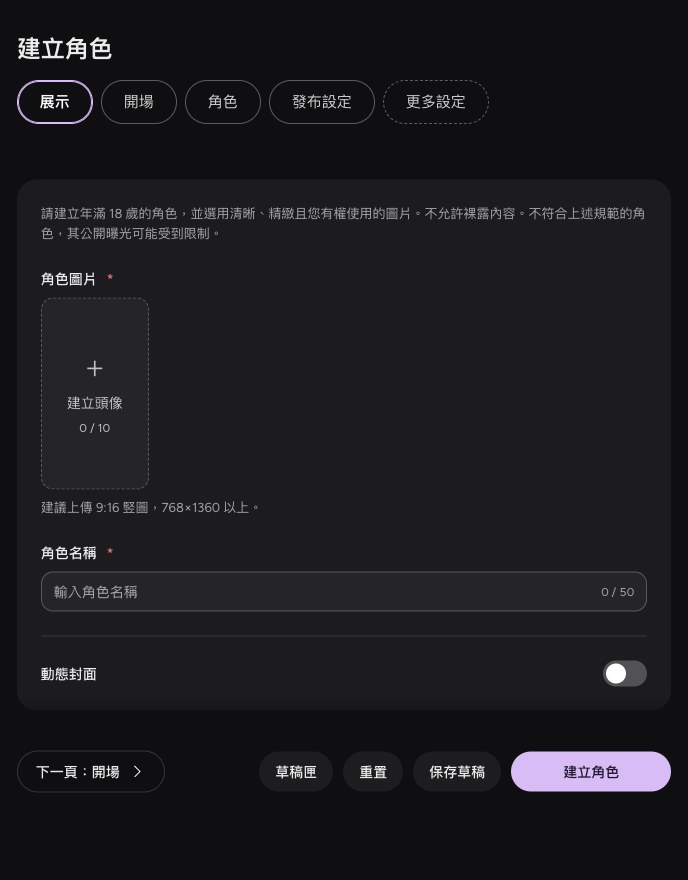
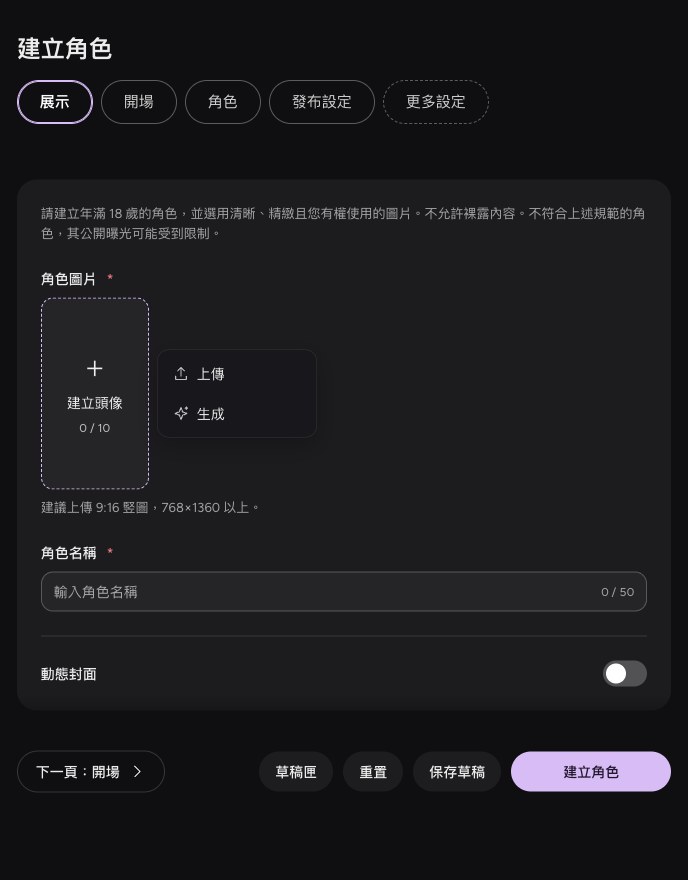
The plus control under the avatar entry offers upload and generation. Only upload material you have the right to use. Before generating images, check cost, image count and balance; review the result for adult appearance and the content rules.
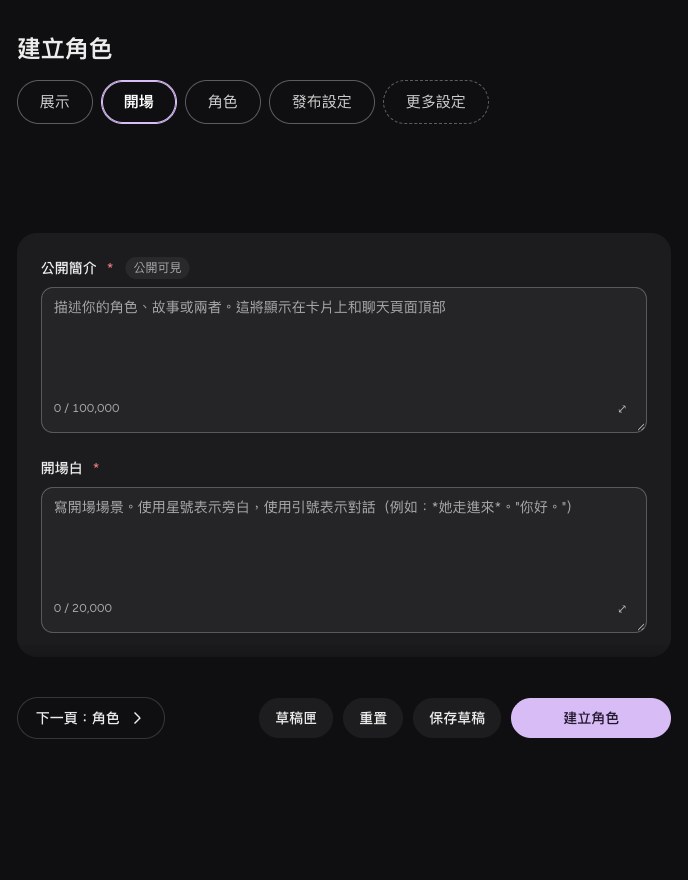
Opening: introduce the character and first scene
The public introduction explains who the character is and why a player might start the story. The opening is the first scene the player sees. Leave room for a response.
For example, the character might offer an old letter and ask whether to open it or answer a knock at the door, rather than deciding the player's actions in advance.
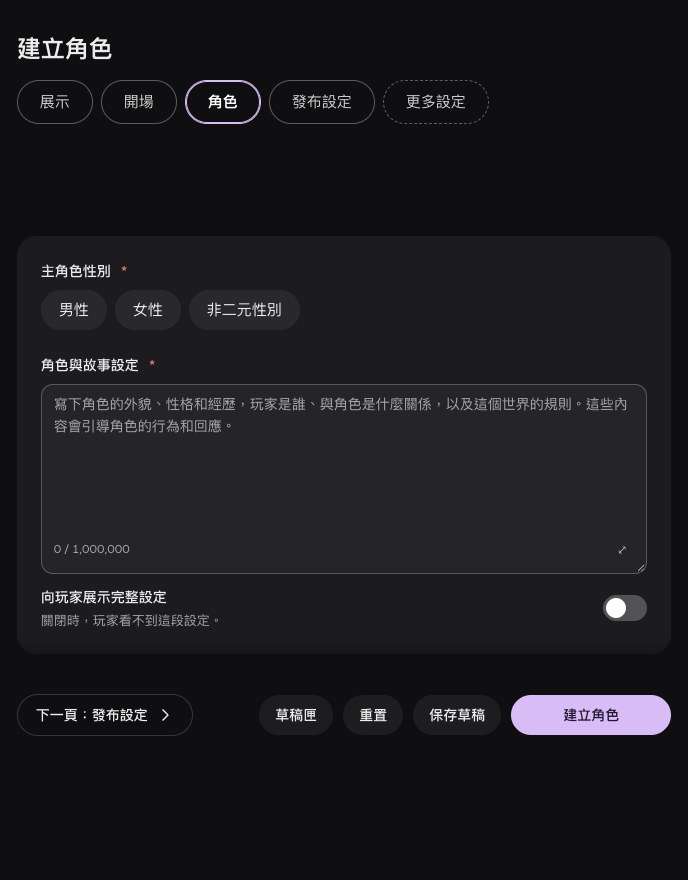
Character: describe the person and situation
Choose the main character's gender, then fill in the combined character and story settings field. The current production editor keeps the person and background in one field. Organize the text into paragraphs:
- Who the character is: appearance, personality, history, goals and speech.
- Where the story takes place: the world, present situation and immediate problem.
- Who the player is: an adult identity and relationship with the character.
- Interaction boundaries: for example, not deciding the player's actions or knowing unrevealed secrets.
Instead of only “calm and kind,” try “checks where their companion is before handling danger; straightens their cuffs when nervous; makes few promises but follows through.”
The option to show the full settings controls whether players can read this text directly. Do not put credentials or strictly confidential information here, regardless of that choice.
Publication settings: choose private or public
Choose visibility and set the rating, voice or tags as needed. Read the declaration before deciding whether to accept it. Private characters are for their author. Public work needs review; successful creation or saving does not mean it is already public.
Rating choices do not exempt content from the rules. See publishing and review for the process and screenshot.
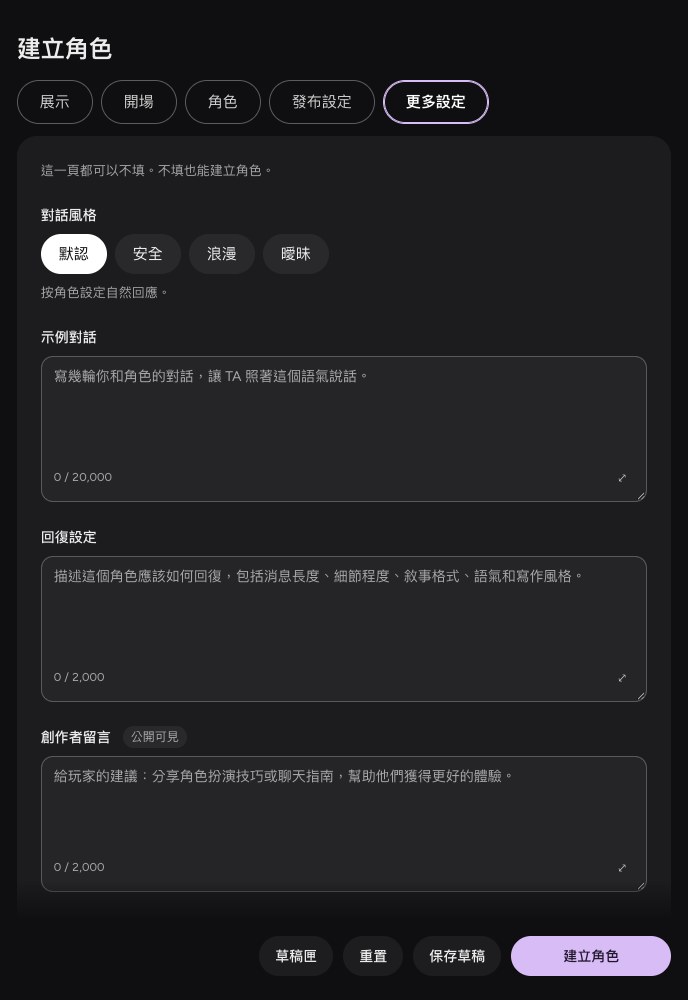
More settings: demonstrate voice and reply style
These fields are optional. To guide replies more closely, add:
- Example dialogue: short exchanges demonstrating tone, wording and reactions.
- Reply settings: narrative perspective, length, format and interaction boundaries.
- Creator notes: instructions for players; these are publicly visible.
Put personality and interaction boundaries in the combined settings, and add format or length preferences in reply settings. Such guidance helps the AI but cannot guarantee perfect adherence in every reply.
Try a conversation, save a draft or establish a character
After completing the required text fields, use the preview on the right to try a conversation. Check whether the opening is easy to answer, the voice stays consistent, and different choices receive reasonable responses. After changing a setting, evaluate the next reply. Check the displayed allowances and costs.
Saving a draft and establishing a character are different. A draft can be completed later; establishment requires the complete required fields, a visibility choice and the declaration. Do not rely only on temporary device recovery to keep long-term work.
Read the complete example for sample text.